Python 3.14 has introduced many new features including template strings, deferred evaluation of annotations, and improvements to error messages, among other things. On the Windows side, the Python team has improved the Python Launcher (also known as py) by adding features that should hopefully make it easier for users to manage and install Python versions on Windows.
Why do we need this?
Perhaps one of the most common problems I see in Python communities is about setting up Python on Windows.
The instruction usually given here is to download the latest version of Python from https://python.org, follow the install instructions (ensuring that Python is set in PATH), and open a terminal to verify that the python command works.
While this generally works if you are only using one version of Python, things complicate when you introduce two or more versions. It is usually here where users begin to experience problems such as conflicts with PATH variables and managing environments or perhaps more complex issues such as installation errors.
To add to this, there are many official distributions of Python on Windows; of course, the first being the MSI distribution from https://python.org. Another distribution you may see is the one provided via the Microsoft Store. You usually find this one when a user attempts to use the python command and is instead redirected to the Store to download Python from there.
Unfortunately, the Microsoft Store distribution also carries the drawbacks of an application installed via the Store, namely the “sandboxed” nature of these applications, which in theory helps with security, but is also the root of many odd problems: from slow startup times to some tools like PyInstaller not working with these distributions. This is why using this distribution of Python is discouraged, even though it is perhaps the most straightforward way of getting Python on a PC.
There are other distributions such as the one available via NuGet or the third-party distributions provided by tooling such as uv, pyenv, or system-wide package managers. In respect to the third-party ones, the drawbacks usually are that some libraries like Tkinter may need to be setup manually.
Either way, the two official distributions discussed above remain the most popular ones.
This is the reason why PEP 773 was created in January of 2025. Its goal is to unify the installation workflow into a single tool called PyManager that satisfies the needs of current distributions while avoiding many of its limitations. This proposal was accepted in April of 2025 and became part of Python 3.14 which was released on October 7, 2025.
The Python Launcher
To understand what PyManager is, it is worth understanding the tool that it replaces (or rather, the tool it enhances) which is the Python Launcher or py. The Python Launcher helps with managing multiple installations of Python by providing a simple interface to select the release of Python you want to work with.
Running py as is simply launches the latest Python 3 release installed. In this case, Python 3.14.
$ py
Python 3.14.0 (tags/v3.14.0:ebf955d, Oct  7 2025, 10:15:03) [MSC v.1944 64 bit (AMD64)] on win32
Type "help", "copyright", "credits" or "license" for more information.
>>>
To see a list of all releases currently installed, you can do py -0. If you want to list out the releases plus the paths to the Python executables, you can do py -0p.
$ py -0
 -V:3.14[-64] *   Python 3.14.0
 -V:3.13          Python 3.13 (64-bit)
 -V:3.12          Python 3.12 (64-bit)
 -V:3.11          Python 3.11 (64-bit)
To select one of the other releases, you can do py -X where X is the Python version you want to use in major.minor format.
So, py -3.13 brings up Python 3.13.
$ py -3.13
Python 3.13.7 (tags/v3.13.7:bcee1c3, Aug 14 2025, 14:15:11) [MSC v.1944 64 bit (AMD64)] on win32
Type "help", "copyright", "credits" or "license" for more information.
>>>
py can also work with third-party distributions of Python (such as Anaconda) that register themselves using the process described in PEP 514.
This effectively was the most you could do with the Python Launcher.
At some point in 2022 (as per this commit), py received the ability to download Python from the Microsoft Store or from winget by setting the PYLAUNCHER_ALLOW_INSTALL environment variable. However, using an environment variable makes it somewhat unintuitive and this also relies on tooling that may either not be available (as with winget) or that is discouraged (as with the Store).
From what I’ve seen, this also received little use. More had to be done.
The Python Manager
The Python Install Manager, or PyManager, is a new tool that improves upon the py launcher by adding the ability to install and uninstall Python releases alongside the install management features it already had. In practice, PyManager behaves exactly like py. For instance, the outputs shown above were produced with PyManager.
PyManager saves you from dealing with MSI installers or with the Microsoft Store versions. Even though PyManager is provided via the Microsoft Store, the way it manages versions (which is by installing Python into your local AppData folder) effectively makes it independent from the Store and hence avoids the restrictions imposed by it.
Downloading the Manager
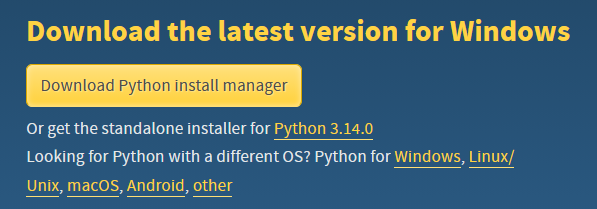
As mentioned, the Python Install Manager can be obtained from the Microsoft Store. You can also obtain it from https://www.python.org/downloads/ where you will see the “Download Python install manager” button plus an option to install a standalone Python installer (though the plan is to phase these standalone versions by 3.16).
Once you install the manager, it will immediately start downloading and installing the latest Python release (as of now, Python 3.14). Once it’s done, it will run configuration checks to verify things such as whether the legacy py launcher is installed or whether the app execution aliases are configured properly.
If you do have the legacy
pylauncher around, you should remove it to avoid conflicts with the newpymanager. Do note that PyManager also provides a separatepymanagercommand for this purpose.
After that, you will be greeted with help options including the new commands added in PyManager.
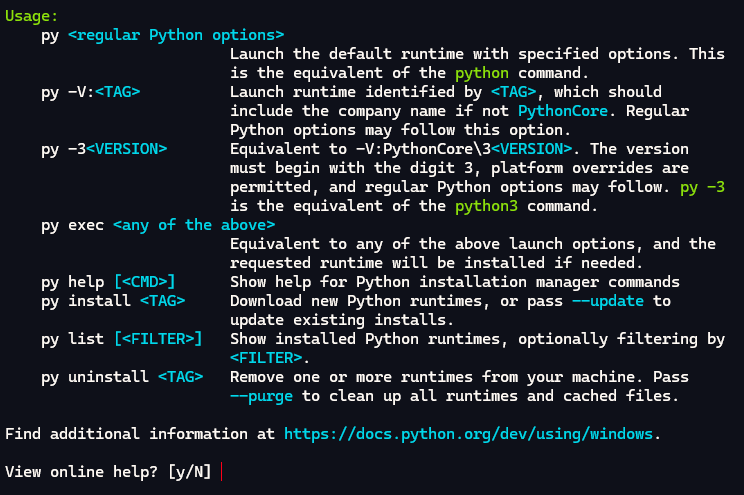
You are also prompted to open the online help docs which you can ignore by pressing Enter or typing N.
Using PyManager
PyManager, as mentioned, inherits the same behaviors as its predecessor: typing py will still launch the latest Python version. However, py has also acquired some new commands.
- Alongside the launch options,
py execwas added. It behaves similarly to the launch options but it installs a runtime for the requested version if it is not found. py helpprovides help for the Python Install Manager (as opposed topy --helpwhich is for the selected Python release).py installallows you to install or update a runtime.py listshows you the installed Python releases.py uninstallremoves the requested runtime.
Do note that py install and py uninstall only work for installations that are managed by PyManager. Python runtimes that were installed through other means (such as the traditional MSI or the Store) must be managed separately.
Installing a Python runtime
If you want to install a Python runtime using PyManager, you use the py install command. PyManager allows you to install anything from the latest in-development versions of Python all the way back to Python 2.7 and 3.5 (though you probably don’t want to use those). The full list can be seen by typing py list --online. This list also includes the release “tags” that you can use when installing a specific version.
Let’s install Python 3.15 which, as of October 2025, is in alpha stage. For this, you specify py install followed by the release “tag” which is usually a version number.
$ py install 3.15
Installing Python 3.15.0a1.
Extracting: ...................................................................✅
Python 3.15.0a1 will be launched by python3.15[-64].exe
Notice how it mentions the version that will be installed alongside the specific command that can be used to launch that release. In this case, the [-64] at the end means that both python3.15.exe and python3.15-64.exe will launch our new release. Of course, you can also access it using py -3.15.
$ py -3.15
Python 3.15.0a1 (tags/v3.15.0a1:aeff92d, Oct 14 2025, 11:51:55) [MSC v.1944 64 bit (AMD64)] on win32
Type "help", "copyright", "credits" or "license" for more information.
>>>
If you ever need to update 3.15 (or any other release), you can specify the --update option which will tell PyManager to install the latest patch release for the requested version.
Listing installations
The py list command gives you a list of all installed Python runtimes.

Notice how this is separated in two categories: the first includes releases installed via PyManager and the second includes releases installed via other means. The entry with the asterisk at the end indicates the default Python runtime that will be used when launching py. If you need to change the default version, you may do this via the PYTHON_MANAGER_DEFAULT environment variable or as documented in the Configuration section of the docs.
An option of note is -f or --format which provides you the command output in either table form, JSON, CSV, or path list form among a few other formats.
Removing installations
Removing an installation is done by using py uninstall. If the requested runtime was installed via PyManager, py will allow you to remove it. Otherwise, you will need to uninstall the runtime separately.
$ py uninstall 3.15
Uninstall Python 3.15.0a1? [Y/n] Y
Removed Python 3.15.0a1
This is pretty much all of what PyManager offers.
Conclusion
In this post, we have covered PyManager in detail, discussing why it is an essential addition to the Python ecosystem and exploring its many commands. Again, if you need more details, you can refer to the PyManager documentation at python.org.